

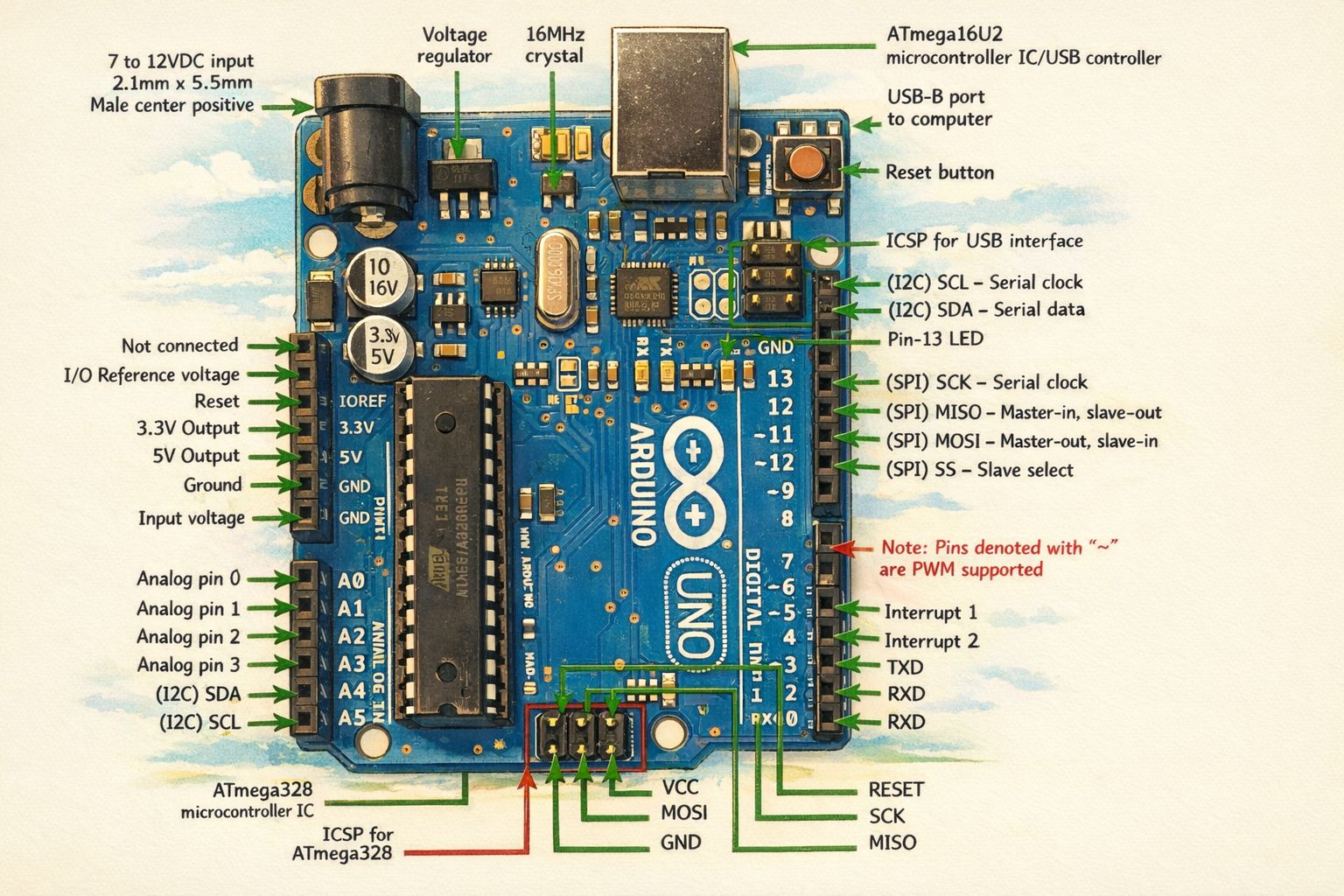
The Arduino UNO is more than just a piece of hardware; it’s the cornerstone for countless innovations in embedded systems, IoT, and robotics. Its accessible platform and robust capabilities have made it a favorite among hobbyists, educators, and professional engineers alike. To truly harness its power, a deep understanding of its architecture and pinout is essential. This article will guide you through the intricate world of the Arduino UNO, transforming complex technical details into an engaging and intuitive learning experience.
1. The Soul of the UNO: The ATmega328P Microcontroller
At the very core of the Arduino UNO lies the ATmega328P, an 8-bit AVR microcontroller produced by Microchip Technology (formerly Atmel). This tiny yet powerful chip is the brains of the operation, executing the instructions (your code) that bring your projects to life. Understanding its role and capabilities is fundamental to mastering the UNO.
1.1. ATmega328P: A Deep Dive into its Architecture
The ATmega328P boasts a Harvard architecture, which means it has separate memory spaces for program and data. This allows for simultaneous access to instructions and data, enhancing execution speed.
1.1.1. Flash Memory
The ATmega328P features 32 KB of in-system self-programmable Flash memory. This is where your compiled Arduino sketches (programs) are stored. Importantly, 0.5 KB of this Flash memory is used by the bootloader, a small program pre-loaded onto the chip that allows you to upload new code via the USB connection without needing an external programmer.
1.1.2. SRAM
Static Random-Access Memory (SRAM) is the volatile memory used for storing variables and temporary data during program execution. The ATmega328P comes with 2 KB of SRAM. When the Arduino is powered off, any data stored in SRAM is lost.
1.1.3. EEPROM
Electrically Erasable Programmable Read-Only Memory (EEPROM) provides 1 KB of non-volatile data storage. Unlike SRAM, data stored in EEPROM persists even after the Arduino is powered down. This is ideal for storing configuration settings, calibration data, or other information that needs to be preserved across power cycles.
1.1.4. Clock Speed and Internal Oscillators
The ATmega328P on the Arduino UNO typically operates at an external clock speed of 16 MHz, driven by a crystal oscillator. This clock speed directly influences the microcontroller’s processing speed and the timing of various operations. The ATmega328P also has internal RC oscillators, but for most Arduino UNO applications, the external 16 MHz crystal provides greater precision and stability.
2. Powering Your Innovations: The UNO’s Power Section
A reliable power supply is crucial for any embedded system. The Arduino UNO offers several ways to power itself and your connected components, each with specific considerations.
2.1. External Power Input: The DC Jack
The Arduino UNO can be powered via an external power supply connected through its DC power jack.
2.1.1. Input Voltage Requirements
The recommended input voltage for the DC jack is 7 to 12 VDC. While the board can technically accept voltages outside this range (6-20V), staying within the recommended range ensures stable operation and prevents potential damage to the voltage regulator. The male center positive 2.1mm×5.5mm barrel connector is a standard for many electronic devices.
2.1.2. The Voltage Regulator
The UNO features an onboard voltage regulator. This component steps down the potentially higher input voltage from the DC jack to the 5V and 3.3V rails required by the ATmega328P and other components. The presence of the voltage regulator allows for flexibility in input power sources, making it convenient for various applications.
2.2. USB Power
The most common way to power the Arduino UNO, especially during development, is via the USB-B port. When connected to a computer, the UNO draws power directly from the USB bus.
2.2.1. USB-B Port and ATmega16U2
The USB-B port serves a dual purpose: it provides power to the board and facilitates serial communication with your computer. The ATmega16U2 microcontroller (or ATmega8U2 on older revisions) acts as a USB-to-serial converter, allowing your computer to communicate with the main ATmega328P chip. This eliminates the need for a separate serial converter chip, simplifying the board design and reducing costs.
2.3. Power Pins
The Arduino UNO also provides several power pins on its headers, allowing you to power external components or draw regulated power from the board.
2.3.1. 5V Output
The 5V pin provides a regulated 5V supply, which is the operating voltage for the ATmega328P and many compatible sensors and actuators. It can supply a limited amount of current, typically around 500mA when powered via USB and up to 800mA when powered via the DC jack (depending on the input voltage and heat dissipation of the voltage regulator).
2.3.2. 3.3V Output
The 3.3V pin provides a regulated 3.3V supply. This is particularly useful for interfacing with sensors and modules that operate at a lower voltage, ensuring compatibility and avoiding potential damage from higher voltages. The 3.3V pin typically provides less current than the 5V pin, usually around 50mA.
2.3.3. Ground (GND) Pins
The GND pins provide the common ground reference for the entire circuit. It is crucial to connect the ground of your external components to one of the UNO’s GND pins to ensure proper operation and avoid floating potentials.
2.3.4. Vin (Input Voltage)
The Vin pin provides direct access to the unregulated input voltage supply from the DC power jack (or the USB 5V if no external power is connected). This can be useful for powering components that require a voltage higher than 5V, provided they can handle the input voltage range.
2.3.5. IOREF (I/O Reference Voltage)
The IOREF pin provides the voltage at which the microcontroller’s I/O pins operate. On the Arduino UNO, this will be 5V. This pin is primarily meant for shields to adapt to the UNO’s operating voltage, indicating the voltage level of the I/O pins.
3. Communication Channels: Connecting the UNO to the World
The Arduino UNO isn’t just a standalone processor; it’s designed to interact with a vast array of other devices and systems. This is achieved through various communication protocols and interfaces.
3.1. Serial Communication (UART)
Serial communication is one of the most fundamental ways the Arduino UNO interacts with computers and other devices.
3.1.1. TX (Transmit) and RX (Receive) Pins
The Arduino UNO has dedicated TX (transmit) and RX (receive) pins for serial communication, located at digital pins 1 and 0 respectively. These pins are connected to the ATmega16U2 USB-to-serial converter, enabling communication with your computer via the USB cable. When uploading a sketch, these pins are used to transfer the code from your computer to the ATmega328P.
3.1.2. Software Serial
While the hardware serial pins are convenient, they are also shared with the USB connection. If you need to communicate with another serial device (e.g., a GPS module, Bluetooth module) while also communicating with your computer, you can use the SoftwareSerial library to implement serial communication on other digital pins.
3.2. I2C (Inter-Integrated Circuit) Communication
I2C, also known as Two-Wire Interface (TWI), is a synchronous, multi-master, multi-slave serial bus commonly used for short-distance communication between integrated circuits.
3.2.1. SCL (Serial Clock) and SDA (Serial Data)
On the Arduino UNO, the I2C interface uses two pins: SCL (Serial Clock) and SDA (Serial Data). These pins are located at analog pin A5 for SCL and A4 for SDA. They are also accessible on dedicated pins near the AREF pin and GNG pin. The SCL line carries the clock signal, synchronizing data transfer, while the SDA line carries the actual data. I2C is commonly used with sensors like accelerometers, gyroscopes, and temperature sensors, allowing multiple devices to share the same bus.
3.3. SPI (Serial Peripheral Interface) Communication
SPI is another synchronous serial communication interface, often faster than I2C and commonly used for communication with flash memory, SD card readers, and display drivers.
3.3.1. SPI Pins: SCK, MISO, MOSI, and SS
The Arduino UNO provides dedicated pins for SPI communication:
SCK(Serial Clock): Digital Pin 13. This line carries the clock signal generated by the master device to synchronize data transfer.MISO(Master In, Slave Out): Digital Pin 12. This line is used by the slave device to send data back to the master.MOSI(Master Out, Slave In): Digital Pin 11. This line is used by the master device to send data to the slave.SS(Slave Select): Digital Pin 10. This pin is used by the master to select which slave device it wants to communicate with, making it possible to have multiple slave devices on the same SPI bus.
These pins are also available on the ICSP header, providing an alternative access point.
4. Digital and Analog World: Understanding I/O Pins
The versatility of the Arduino UNO largely stems from its flexible input/output (I/O) pins, which allow it to interact with both digital and analog signals.
4.1. Digital Pins
The Arduino UNO has 14 digital I/O pins (0-13), which can be configured as either inputs or outputs.
4.1.1. Input Mode
When a digital pin is configured as an input, it reads the voltage level present on the pin. It can detect two states: HIGH (typically 5V) or LOW (0V). This is ideal for reading inputs from switches, buttons, and digital sensors.
4.1.2. Output Mode
When a digital pin is configured as an output, the Arduino can set the voltage level on the pin to either HIGH (5V) or LOW (0V). This is perfect for controlling LEDs, relays, buzzers, and other digital actuators.
4.1.3. Internal Pull-up Resistors
Each digital pin has an internal pull-up resistor that can be enabled. When enabled, this resistor pulls the pin’s voltage HIGH when it’s not connected to anything, preventing it from “floating” and providing a stable HIGH signal. This is particularly useful for connecting push buttons, as it simplifies the wiring by eliminating the need for an external pull-up resistor.
4.2. PWM (Pulse Width Modulation) Outputs
Not all digital pins are created equal. Six of the digital pins on the Arduino UNO (3, 5, 6, 9, 10, and 11) are marked with a “~” symbol, indicating that they support Pulse Width Modulation (PWM).
4.2.1. Simulating Analog Output
PWM is a technique used to simulate analog output using digital means. By rapidly switching a digital signal HIGH and LOW at varying duty cycles (the proportion of time the signal is HIGH), the Arduino can effectively control the average voltage supplied to a component. This is invaluable for applications like dimming LEDs, controlling the speed of DC motors, or generating analog waveforms. The analogWrite() function in Arduino is used to control PWM output.
4.3. Analog Inputs
The Arduino UNO has 6 analog input pins (A0-A5). These pins are designed to read continuous voltage values.
4.3.1. Analog-to-Digital Converter (ADC)
At the heart of the analog input functionality is a 10-bit Analog-to-Digital Converter (ADC). This ADC converts the analog voltage present on an analog pin into a digital value ranging from 0 to 1023. A 10-bit ADC provides 210=1024 distinct levels. Since the Arduino UNO typically operates with a 5V analog reference, each step corresponds to approximately 5V/1024≈4.88mV.
4.3.2. Applications of Analog Input
Analog inputs are essential for interfacing with analog sensors such as potentiometers, temperature sensors (e.g., LM35), light-dependent resistors (LDRs), and flex sensors, which provide a continuously varying voltage output.
4.3.3. AREF (Analog Reference) Pin
The AREF pin allows you to connect an external analog reference voltage. By default, the Arduino UNO uses its 5V supply as the analog reference. However, for more precise measurements or to work with sensors that output a voltage range different from 0-5V, you can provide an external reference voltage to the AREF pin using the analogReference() function.
5. Timing and Synchronization: The 16MHz Crystal and Reset Button
Precise timing and the ability to restart operation are critical for microcontroller stability and development.
5.1. The 16MHz Crystal Oscillator
The small, silver component labeled “16 MHz crystal” is the heart of the Arduino UNO’s timing system.
5.1.1. Providing the Clock Signal
This quartz crystal vibrates at a very precise frequency of 16 megahertz. This vibration generates the clock signal that synchronizes all operations within the ATmega328P microcontroller. A stable and accurate clock signal is essential for the correct execution of instructions, timing functions (like delay()), and communication protocols.
5.2. The Reset Button
The small push button labeled “Reset button” provides a crucial function for debugging and restarting your Arduino.
5.2.1. Restarting the Program
Pressing the reset button triggers a hardware reset of the ATmega328P. This causes the microcontroller to stop its current program execution, load the bootloader, and then immediately restart your sketch from the beginning. This is incredibly useful during development when you need to quickly re-run your code after making changes or when your program enters an unexpected state.
6. In-Circuit Serial Programming (ICSP) Headers
The Arduino UNO features two In-Circuit Serial Programming (ICSP) headers. These are sets of pins that allow for direct communication with the microcontrollers on the board using the SPI protocol.
6.1. ICSP for ATmega328P
The 6-pin ICSP header located near the ATmega328P microcontroller is specifically designed for programming the main chip.
6.1.1. Direct Microcontroller Programming
This header allows you to bypass the bootloader and directly program the ATmega328P. This is useful for various advanced scenarios, such as:
- Burning a new bootloader: If your bootloader becomes corrupted or you want to install a custom bootloader, you can use an external programmer connected to this header.
- Uploading sketches without a bootloader: For highly optimized applications where every byte of Flash memory matters, you can upload sketches directly, freeing up the 0.5 KB normally reserved for the bootloader.
- Debugging: Some advanced debugging tools can connect to this header to gain low-level access to the microcontroller.
The pins on this header typically correspond to VCC (power), GND (ground), MOSI, MISO, SCK, and RESET.
6.2. ICSP for USB Interface (ATmega16U2)
Another 6-pin ICSP header is located near the ATmega16U2 (or ATmega8U2) microcontroller, which handles the USB-to-serial conversion.
6.2.1. Reprogramming the USB Interface Chip
This header allows you to reprogram the firmware on the ATmega16U2. While most users will rarely need to do this, it enables advanced functionalities such as:
- Changing USB functionality: You can transform your Arduino UNO into a different USB device (e.g., a keyboard, mouse, or joystick) by flashing custom firmware to the ATmega16U2. This opens up possibilities for creating custom human interface devices (HIDs).
- Troubleshooting USB communication issues: In rare cases where the USB communication fails, reflashing the ATmega16U2 firmware can resolve the problem.
The pins on this header also typically provide VCC, GND, MOSI, MISO, SCK, and RESET connections specific to the ATmega16U2.
7. The Pin-13 LED: Your First Output
Near the digital pin 13, you’ll find a small orange LED. This seemingly simple component plays a significant role in learning and debugging.
7.1. Onboard Indicator
The Pin-13 LED is directly connected to digital pin 13, along with a series resistor to limit current. This means you can control this LED directly from your code without needing to connect any external components.
7.2. “Hello World” of Embedded Systems
For many beginners, blinking this LED is their very first program on the Arduino. It serves as an immediate visual confirmation that your code has been successfully uploaded and is executing. This simple act of controlling a physical output instills confidence and provides a tangible feedback loop, making the learning process more engaging.
8. Beyond the Basics: Advanced Concepts and Best Practices
Mastering the UNO architecture is a strong foundation, but a true understanding involves embracing best practices and exploring its full potential.
8.1. Shield Compatibility and Stacking
One of Arduino’s greatest strengths is its modularity, achieved through “shields.”
8.1.1. Expanding Functionality
Shields are pre-made circuit boards that plug directly into the Arduino UNO’s headers, extending its capabilities without requiring complex wiring. Examples include Ethernet shields for network connectivity, motor driver shields for robotics, and LCD shields for display output. Understanding the UNO’s pinout is crucial when selecting and using shields to ensure compatibility and prevent pin conflicts.
8.1.2. Pin Conflicts and Workarounds
When stacking multiple shields, it’s essential to be aware of potential “pin conflicts” where two shields attempt to use the same Arduino pin for different purposes. Careful planning, consulting shield documentation, and sometimes using jumper wires or custom shield modifications can help resolve these conflicts.
8.2. Microcontroller Bootloader and Program Upload
The bootloader is a small but vital program residing in the Flash memory of the ATmega328P.
8.2.1. Simplifying Code Uploads
The bootloader allows you to upload new programs to the Arduino UNO via the serial port (USB connection) without requiring an external programmer. When you press the upload button in the Arduino IDE, the IDE first triggers a reset on the Arduino, which then initiates the bootloader. The bootloader listens for incoming code on the serial port and, if received, writes it to the Flash memory.
8.2.2. Bootloader Replacement
While the default bootloader is highly functional, advanced users might wish to replace it with a custom bootloader for specific functionalities (e.g., faster upload speeds, different communication protocols) or to repair a corrupted bootloader using the ICSP header.
8.3. Interrupts: Responding to the Unexpected
Interrupts are a powerful feature of microcontrollers that allow them to respond immediately to external events or internal conditions, without constantly polling for changes.
8.3.1. External Interrupts
The Arduino UNO’s ATmega328P supports external interrupts on digital pins 2 and 3. These pins can be configured to trigger an interrupt service routine (ISR) when their voltage state changes (e.g., from HIGH to LOW, LOW to HIGH, or any change). This is invaluable for time-critical applications like reading encoder outputs, responding to button presses, or measuring rapidly changing signals, as it ensures that the microcontroller doesn’t miss important events while executing other parts of its main program.
8.3.2. Timer Interrupts
In addition to external interrupts, the ATmega328P also has internal timers that can generate interrupts at regular intervals. Timer interrupts are useful for tasks that require precise timing, such as scheduling events, creating accurate delays, or implementing complex control algorithms in the background.
8.4. Power Management and Optimization
Efficient power management is crucial for battery-powered IoT devices and embedded systems.
8.4.1. Reducing Power Consumption
While the Arduino UNO is not specifically designed for ultra-low power applications, there are techniques to reduce its power consumption. These include:
- Disabling unused peripherals: Turning off components like the onboard LED, USB-to-serial converter, or brown-out detector when not needed can save power.
- Using sleep modes: The ATmega328P offers various sleep modes that significantly reduce power consumption by temporarily shutting down parts of the microcontroller. The
LowPowerlibrary can be used to easily implement these sleep modes. - Optimizing code: Efficient code that minimizes busy-waiting loops and uses interrupts judiciously can also contribute to lower power usage.
8.4.2. External Power Considerations
When powering the Arduino UNO from batteries, it’s important to consider battery chemistry, capacity, and voltage regulation. Using a buck converter to efficiently step down higher battery voltages can prolong battery life compared to relying solely on the UNO’s linear voltage regulator.
8.5. Debugging Techniques
Effective debugging is an art form every embedded engineer must master.
8.5.1. Serial Monitor
The Serial Monitor in the Arduino IDE is an indispensable tool for debugging. By printing variable values, status messages, and program flow information to the Serial Monitor, you can gain insights into your sketch’s execution.
8.5.2. LED Indicators
The onboard Pin-13 LED, or indeed any connected LED, can be used as a simple visual debugger. Blinking an LED in specific patterns or turning it on/off during certain program states can indicate the execution flow or the status of a condition.
8.5.3. Breakpoints and Step-through Debugging (with external tools)
For more advanced debugging, especially when dealing with complex code or intricate timing issues, an external in-circuit debugger (like Atmel-ICE or a JTAG debugger) connected via the ICSP header can be invaluable. These tools allow you to set breakpoints, step through your code line by line, inspect variable values in real-time, and get a much deeper understanding of your program’s behavior.
9. The Future of Embedded Innovation with Arduino UNO
The Arduino UNO, despite its relative simplicity, continues to be a relevant and powerful tool in the rapidly evolving landscape of embedded systems, IoT, and robotics. Its accessibility has democratized hardware development, enabling a new generation of innovators.
9.1. UNO as a Prototyping Platform
For many complex projects, the UNO serves as an excellent starting point for rapid prototyping. Its ease of use allows developers to quickly validate concepts, test sensors, and develop core functionalities before transitioning to more specialized or powerful hardware. The foundational knowledge gained from understanding the UNO’s architecture is directly transferable to other microcontrollers and platforms.
9.2. Educational Tool
The Arduino UNO’s intuitive design and vast community support make it an unparalleled educational tool. From high school classrooms to university engineering labs, it helps students grasp fundamental concepts in electronics, programming, and system design in a hands-on, engaging manner. The visual metaphor of a Ghibli-inspired world for its pinout further amplifies this learning experience, making complex technical details more approachable.
9.3. Stepping Stone to Advanced Platforms
While the UNO is powerful, some projects may eventually outgrow its capabilities in terms of processing power, memory, or specialized peripherals. However, the experience gained with the UNO provides a smooth transition to more advanced Arduino boards (like the Mega, Due, or ESP32-based boards), other microcontrollers (like ESP32, Teensy), or even custom PCB designs. The principles of digital I/O, serial communication, and embedded programming remain consistent across these platforms.
9.4. Contributing to the IoT Ecosystem
The Internet of Things (IoT) demands robust and reliable embedded systems. The Arduino UNO, with its ability to act as a sensor node, a simple gateway, or a controller for smart devices, actively contributes to the expansive IoT ecosystem. Its understanding serves as a crucial building block for developing connected solutions, from smart homes to industrial automation.
Conclusion: The Enduring Legacy of the Arduino UNO
The Arduino UNO is far more than just a circuit board; it’s a gateway to innovation, a classroom for emergent engineers, and a canvas for countless creative projects. From the meticulous operations of its ATmega328P microcontroller to the versatile dance of its I/O pins, every component plays a harmonious role in bringing ideas to life. Whether you’re illuminating an LED, controlling a robotic arm, or building a smart home device, a deep understanding of the UNO’s architecture is the bedrock of your success.
The journey of mastering the UNO, much like exploring a beautifully animated world, is filled with discovery, challenge, and immense satisfaction. It’s where visual learning meets technical accuracy, translating into engineering clarity that powers the next generation of embedded systems.
Unlock the full potential of your embedded systems and IoT projects. If you’re looking to elevate your understanding, develop cutting-edge solutions, or require expert guidance in the world of microcontrollers and smart technology, IoT Worlds is here to help. Send an email to info@iotworlds.com to explore how our services can empower your innovations.
