

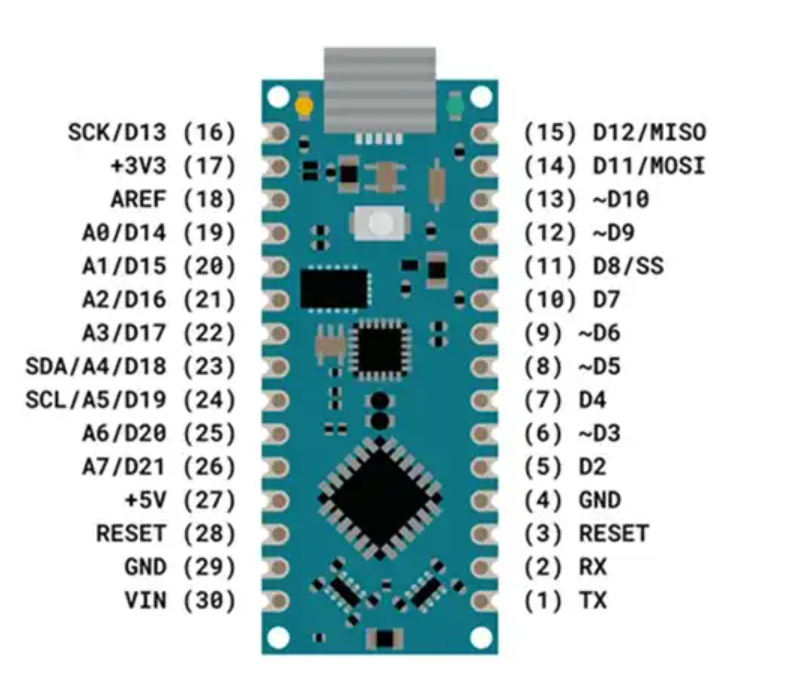
The Arduino Nano. A name synonymous with compact power and endless possibilities in the world of electronics and the Internet of Things (IoT). For hobbyists, engineers, and innovators alike, this small yet mighty microcontroller board serves as a cornerstone for countless projects, enabling everything from simple LED blinking to complex sensor networks. But to truly unlock its potential, one must first master its intricate pinout. This guide will delve deep into the heart of the Arduino Nano, dissecting each pin’s function and revealing how they collectively bring your IoT visions to life.
The Foundation: Understanding the Arduino Nano’s Core Capabilities
Before we plunge into the specifics of each pin, it’s crucial to grasp the fundamental architecture and capabilities that make the Arduino Nano such a versatile tool. At its essence, the Nano is a microcontroller board based on the ATmega328P (or ATmega168 for older versions). Its small footprint, breadboard-friendly design, and comprehensive set of I/O pins make it an ideal choice for projects where space is at a premium but robust functionality is a must.
A Compact Powerhouse
The Arduino Nano’s compact size, measuring approximately 45 mm by 18 mm, belies its significant processing power. It offers a clock speed of 16 MHz, 32 KB of flash memory (which 2 KB is used by the bootloader), 2 KB of SRAM, and 1 KB of EEPROM. These specifications, while seemingly modest by modern computer standards, are more than sufficient for the vast majority of embedded systems and IoT applications. The ability to program it via a mini-B USB cable also adds to its convenience, making it accessible to a wide audience.
The Ecosystem Advantage
Being part of the Arduino family, the Nano benefits from a vast and supportive ecosystem. This includes the intuitive Arduino IDE (Integrated Development Environment), a rich collection of libraries, and a thriving global community ready to assist with troubleshooting and inspiration. This accessibility significantly lowers the barrier to entry for beginners while providing powerful tools for experienced developers.
Powering Up: The Lifeblood of Your Projects
Every electronic circuit requires power, and the Arduino Nano is no exception. Its power pins are the conduits through which electricity flows, energizing the board and any connected components. Understanding these pins is fundamental to correctly and safely powering your projects.
VIN: The Input Voltage Pin
The VIN pin serves as the primary input for providing unregulated power to your Arduino Nano when you are not using the USB port. This pin is designed to accept a voltage range of 7V to 12V. This flexibility allows for various power sources, such as a 9V battery, a wall adapter, or a DC power supply.
When power is supplied through VIN, an onboard voltage regulator steps down and stabilizes the voltage to the 5V and 3.3V required by the microcontroller and other components. It’s important to note that supplying a voltage outside the recommended range can damage the board. For instance, a voltage significantly higher than 12V will cause the regulator to overheat, potentially leading to permanent damage. Conversely, a voltage below 7V might not provide sufficient power for stable operation, especially if you have power-hungry components connected.
5V: The Regulated Power Output
The 5V pin is a crucial output pin, providing a regulated 5V directly from the board’s onboard regulator. This pin is your go-to source for powering the majority of sensors, modules, and other components that typically operate at 5V. Many digital sensors, displays (like character LCDs), and motor drivers require a stable 5V supply, making this pin indispensable.
When drawing power from the 5V pin, remember that the total current draw should not exceed the maximum current the Arduino Nano’s regulator can supply. While the exact limit can vary slightly between different Nano versions and operating conditions, it’s generally advisable to keep the total current consumption from this pin below 500mA to avoid stressing the regulator and potentially causing instability or damage. For projects requiring more substantial current, an external power supply should be used, with its 5V output connected directly to the 5V rail of your circuit (bypassing the VIN pin and onboard regulator).
3.3V: Lower Voltage for Specialized Components
The 3.3V pin provides a lower regulated voltage output, specifically 3.3V. This pin is essential for interfacing with specialized components and sensors that operate at 3.3V and cannot tolerate the higher 5V supply. Many modern low-power sensors, such as some accelerometers, gyroscopes, and wireless transceivers (like ESP8266 modules), are designed to work at 3.3V.
The current capacity of the 3.3V pin on the Arduino Nano is relatively low, typically around 50mA. This means you should be cautious not to draw too much current from this pin, as doing so can damage the onboard 3.3V regulator. For components requiring more than 50mA at 3.3V, an external 3.3V regulator or a dedicated 3.3V power supply should be employed to avoid overloading the Nano.
Connecting a 5V component directly to a 3.3V pin (or vice-versa, without proper level conversion) can lead to component damage due to voltage mismatch. Always consult the datasheet of your components to ensure compatibility with either 5V or 3.3V power.
GND: The Common Ground
The GND (Ground) pins are arguably the most critical pins on the Arduino Nano. Every electrical circuit requires a common return path for current to flow, and that path is provided by the ground connection. Without a common ground reference, your components will not function correctly, and communication between them will be impossible.
The Arduino Nano typically has several GND pins strategically located around the board for convenience. When connecting sensors, actuators, or any other electronic component to your Nano, always ensure that their ground pins are connected to one of the Nano’s GND pins. This establishes a common electrical reference point, allowing the various voltage levels (e.g., 5V, 3.3V, and signal voltages) to be properly interpreted. Think of it as the foundation upon which all your electrical connections are built.
Digital & Analog I/O: The Logic and Perception of Your Nano
The Input/Output (I/O) pins are where the Arduino Nano truly comes alive, enabling it to interact with the physical world. These pins allow the Nano to read signals from sensors, control actuators, and communicate with other devices. They are categorized into digital and analog pins, each serving distinct roles.
Digital Pins (D0-D13): Highs, Lows, and Binary Decisions
The Arduino Nano features 14 digital pins, labeled D0 through D13. These pins are the workhorses for handling binary signals, meaning they can be in one of two states: HIGH (typically 5V) or LOW (typically 0V or ground). This binary nature makes them ideal for tasks such as:
- Reading digital inputs: Detecting whether a button is pressed or released, a switch is open or closed, or a motion sensor has triggered.
- Controlling digital outputs: Turning an LED on or off, activating a relay, or sending a trigger signal to another module.
Each digital pin can be configured as either an INPUT or an OUTPUT programmatically using the pinMode() function in the Arduino IDE.
INPUTpins: When configured as an input, a digital pin can “sense” the voltage level present on it. It has very high impedance, meaning it draws very little current, and is suitable for reading signals from external sources.OUTPUTpins: When configured as an output, a digital pin can actively drive aHIGHorLOWvoltage. It’s crucial not to draw too much current from an output pin, as this can damage the microcontroller. Each digital pin generally has a maximum current sourcing/sinking capability (e.g., 20mA for ATmega328P pins), which should be respected.
Some digital pins have additional functionalities, which we’ll explore in the communication protocols section.
PWM Pins (D3, D5, D6, D9, D10, D11): Simulating Analog Control
While digital pins inherently handle binary states, sometimes you need to simulate an analog output, such as dimming an LED, controlling the speed of a DC motor, or setting the position of a servo motor. This is where Pulse Width Modulation (PWM) comes into play.
The Arduino Nano has six PWM-capable digital pins: D3, D5, D6, D9, D10, and D11. These pins are often marked with a tilde (~) symbol on the board to indicate their PWM capability. PWM works by rapidly switching the digital output between HIGH and LOW at a variable duty cycle. By changing the percentage of time the signal is HIGH within a fixed period, the average voltage produced can be varied, effectively simulating an analog output.
For example, to dim an LED:
- A 0% duty cycle (0%
HIGHtime) results in the LED being off. - A 50% duty cycle (50%
HIGHtime) results in the LED being half-bright. - A 100% duty cycle (100%
HIGHtime) results in the LED being fully bright.
The analogWrite() function in the Arduino IDE is used to control the PWM output. It takes a value between 0 (for 0% duty cycle) and 255 (for 100% duty cycle) to set the intensity or speed.
Analog Pins (A0-A7): Reading the Continuum of the Physical World
Unlike the Arduino Uno, which typically has six analog input pins, the Arduino Nano boasts eight analog input pins, labeled A0 through A7. These pins are specifically designed to read varying voltage levels, providing a window into the continuous nature of the physical world.
Analog sensors, such as temperature sensors, light sensors (photoresistors), and potentiometers, produce an analog voltage output that changes proportionally to the physical quantity being measured. The Arduino Nano’s Analog-to-Digital Converter (ADC) built into the microcontroller takes these analog voltages (within a range of 0V to 5V) and converts them into digital numbers.
With a 10-bit ADC, the Nano can distinguish between 210=1024 different levels. This means an input voltage range of 0V to 5V is mapped to digital values from 0 to 1023.
- 0V input corresponds to a digital value of 0.
- 5V input corresponds to a digital value of 1023.
- A 2.5V input would correspond to approximately 511.
The analogRead() function in the Arduino IDE is used to read the values from these pins. The increased number of analog inputs on the Nano makes it particularly well-suited for projects requiring multiple analog sensors without the need for external multiplexers.
Communication Protocols: How Your Nano Speaks to the World
In the interconnected realm of IoT, communication is paramount. The Arduino Nano is equipped with several built-in hardware communication protocols, enabling it to “talk” to a wide array of other devices, from sensors and displays to other microcontrollers and computers.
UART (Serial): The Foundation of Digital Communication
Universal Asynchronous Receiver/Transmitter (UART), commonly known as Serial communication, is one of the most fundamental and widely used communication methods. The Arduino Nano dedicates two pins for hardware serial communication:
TX(D1): The Transmit pin. This pin sends data out from the Arduino Nano.RX(D0): The Receive pin. This pin receives data into the Arduino Nano.
These pins (D0 and D1) are also used by the USB-to-serial converter chip on the Arduino Nano to communicate with your computer when you upload code or use the Serial Monitor. This is an important consideration:
Important Note: When programming your Arduino Nano or monitoring serial data via the USB port, avoid connecting external sensors or modules to pins D0 and D1 that also use serial communication. Doing so can cause conflicts, preventing code uploads or leading to garbled data. If your project requires serial communication with other devices while also communicating with a computer, consider using a software serial library that allows you to use other digital pins for serial communication.
UART communication is typically used for:
- Communicating with a computer via the Serial Monitor for debugging and data display.
- Interfacing with modules like Bluetooth (HC-05, HC-06), GPS, or GSM/GPRS modules.
- Communicating between two microcontrollers.
The Serial.begin(), Serial.print(), Serial.println(), and Serial.read() functions are commonly used in Arduino sketches for UART communication.
I2C (SDA/SCL): The Two-Wire Master of Many
I2C (Inter-Integrated Circuit), pronounced “eye-squared-see,” is a robust and efficient two-wire serial communication protocol that allows a single master device (like the Arduino Nano) to communicate with multiple slave devices. It’s incredibly popular due to its minimal wiring requirements and ability to connect many devices to just two pins.
The Arduino Nano dedicates the following pins for I2C communication:
A4(SDA): Serial Data Line. This line carries the actual data being transferred between the master and slave devices.A5(SCL): Serial Clock Line. This line synchronizes the data transfer between devices.
The beauty of I2C lies in its address-based system. Each slave device on the bus has a unique address, allowing the master to selectively communicate with specific devices. This means you can connect multiple sensors (e.g., an OLED display, an accelerometer, a real-time clock, a temperature sensor) to the same two A4 and A5 pins without requiring additional pins for each device.
I2C is commonly used for:
- Interfacing with various sensors: accelerometers, gyroscopes, magnetometers, barometric pressure sensors, temperature sensors.
- Controlling OLED and LCD displays.
- Communicating with real-time clock (RTC) modules.
- Expanding I/O capabilities with I/O expanders.
The Arduino Wire library provides the necessary functions for implementing I2C communication in your sketches, such as Wire.begin(), Wire.beginTransmission(), Wire.write(), and Wire.read().
SPI (MISO/MOSI/SCK): The Speedy Synchronizer
SPI (Serial Peripheral Interface) is another synchronous serial communication protocol, renowned for its higher data transfer rates compared to I2C and UART. It typically uses four wires for communication, making it a “four-wire” protocol in common implementations.
The Arduino Nano utilizes the following pins for SPI communication:
D11(MOSI): Master Out, Slave In. This pin is used by the master (Nano) to send data to the slave device.D12(MISO): Master In, Slave Out. This pin is used by the slave device to send data back to the master (Nano).D13(SCK): Serial Clock. This line provides the clock signal that synchronizes data transfer.D10(SS/CS): Slave Select / Chip Select. While not strictly part of the core SPI protocol (it’s often handled programmatically),D10is generally considered the default Slave Select pin on the Arduino Nano. Each slave device typically needs its ownSSpin from the master to enable communication with it. This allows multiple SPI slave devices to be connected to the sameMOSI,MISO, andSCKlines.
SPI is particularly well-suited for applications demanding high-speed data transfer and is commonly found in:
- SD card modules: For reading and writing data to an SD card.
- High-speed displays: Such as some TFT liquid crystal displays.
- External EEPROM and Flash memory: For expanding memory.
- Digital-to-Analog Converters (DACs) and Analog-to-Digital Converters (ADCs): For high-precision data conversion.
- Wireless communication modules: Like some RF transceivers.
The Arduino SPI library simplifies the implementation of SPI communication, providing functions like SPI.begin(), SPI.transfer(), and SPI.beginTransaction().
Special Function Pins: Beyond the Basics
While the power, I/O, and communication pins cover the majority of usage scenarios, the Arduino Nano also includes a few special function pins that offer additional control and flexibility.
RESET: The Quick Restart Button
The RESET pin, as its name suggests, is used to restart the Arduino Nano’s program from the beginning. When this pin is pulled LOW (connected to GND), the microcontroller’s execution restarts.
This pin is invaluable for several purposes:
- External Reset Button: You can connect a momentary push-button switch between the
RESETpin andGNDto create an external reset button for your project. This is particularly useful when the Nano is enclosed or difficult to access. - Programmatic Reset: While less common for the end-user, advanced applications or external programmers might use this pin to programmatically reset the board.
- Bootloader Activation: The
RESETpin plays a role in activating the bootloader sequence, which is crucial for uploading new sketches to the microcontroller.
You’ll often see a pull-up resistor connected to the RESET pin internally on the Nano to keep it HIGH by default, preventing unintended resets.
AREF: Refining Analog Measurements
The AREF (Analog REFerence) pin is a specialized pin primarily used to set an external reference voltage for the analog input pins. By default, the Arduino Nano uses its internal 5V (or 3.3V if set by the microcontroller) as the reference voltage for analog readings. This means that a 0V to 5V input on an analog pin will be mapped to 0 to 1023.
However, in certain applications, especially those requiring higher precision or dealing with sensors that output a smaller voltage range, you might want to use a different reference voltage. For example, if you have a sensor that outputs a maximum of 2V, using the default 5V reference means you’re only utilizing a portion of the ADC’s range (0−409 out of 1023), reducing the resolution of your readings.
By connecting a stable external voltage source (e.g., 1.1V using the internal reference, or a 2.5V voltage reference chip) to the AREF pin, you can change the upper limit of the analog input range.
Crucial Warning: Be extremely careful when using the AREF pin. Never connect a voltage source directly to AREF unless you have explicitly set the analogReference() function in your sketch to EXTERNAL. If you connect an external voltage to AREF while the reference is still set to DEFAULT (which uses the internal 5V or 3.3V reference), you risk damaging the ATmega328P microcontroller. Always disconnect any external voltage from AREF before uploading code that doesn’t use an external reference.
When correctly used, AREF can significantly improve the accuracy and resolution of your analog measurements, particularly for low-voltage sensors.
Practical Applications and Project Inspirations
Now that we’ve broken down each pin, let’s explore how these versatile connections translate into real-world IoT projects. The Arduino Nano’s compact size and rich feature set make it suitable for a wide array of applications.
Smart Home Automation
Imagine a smart home system powered by an Arduino Nano.
- Temperature and Humidity Monitoring (
A0,A1): Using analog sensors like DHT11/DHT22 or LM35 connected to analog pins, you can monitor environmental conditions. - Light Control with PWM (
D3,D5,D6): Control the brightness of smart LED strips using PWM pins, creating ambient lighting effects. - Door/Window Sensors (
D2,D4): Magnetic contact sensors connected to digital input pins can detect open or closed states, triggering alerts or actions. - Wi-Fi Connectivity (
D0,D1via SoftwareSerial, orA4,A5with I2C/SPI Wi-Fi modules): Interfacing with an ESP8266 Wi-Fi module (often requiring software serial forD0/D1or an I2C/SPI module) allows the Nano to send data to cloud platforms or receive commands from a smartphone app.
Environmental Monitoring Stations
A weather station is a classic project that highlights the Nano’s I/O capabilities.
- Barometric Pressure Sensor (
A4,A5with I2C): A BMP280 or BME280 sensor can provide pressure and altitude data via I2C. - Wind Speed and Direction Sensors (
D2,D3for digital input/interrupts): Anemometers and wind vanes often provide pulse outputs or analog voltage outputs, respectively, which can be read by the Nano. - Rain Gauge (
D4for digital input/interrupts): A tipping bucket rain gauge can provide pulses that the Nano counts to measure rainfall. - Data Logging (
D11,D12,D13with SPI): An SD card module connected via SPI can store all collected weather data for later analysis.
Wearable Technology and Compact Gadgets
The Nano’s small form factor makes it ideal for integrating into wearable devices or small, portable gadgets.
- Fitness Trackers (
A4,A5with I2C): Accelerometers and gyroscopes (e.g., MPU6050) can track movement and orientation. - Portable Air Quality Monitors (
A0,A1): Gas sensors (MQ series) can detect various airborne pollutants, providing analog voltage outputs. - Miniature Robotics (
PWMpins for motor control): Control small DC motors or servo motors for robotic platforms. PWM pins are crucial here for precise speed and position control.
Industrial IoT and Sensor Networks
In industrial settings, the Nano can serve as an edge device for collecting data from various sensors and transmitting it to a central gateway.
- Temperature and Pressure Monitoring for Machinery (
A0–A7): Connect multiple industrial sensors (0-5V analog output) to monitor machinery health. - Modbus Communication (Serial
D0,D1or SoftwareSerial): Interface with industrial equipment using the Modbus protocol, often implemented over UART. - Asset Tracking (GPS/GSM modules via Serial): Track the location of assets or send alerts using GPS and GSM modules.
Optimizing Your ARDUINO NANO Projects for Performance and Reliability
Beyond just knowing what each pin does, truly mastering the Arduino Nano involves understanding best practices for wiring, coding, and power management to ensure your projects are robust, efficient, and reliable.
Smart Power Management
- Choose the Right Power Source: Always select a power source that meets the voltage and current requirements of your entire project, not just the Nano itself. If you’re powering many components, consider an external power supply for them, connecting only their ground to the Nano’s
GND. - Voltage Regulators: For components requiring a different voltage than 5V or 3.3V (and exceeding the Nano’s 3.3V current limit), use dedicated external voltage regulators (e.g., L7805 for 5V, LM1117−3.3 for 3.3V).
- Decoupling Capacitors: Place small capacitors (e.g., 0.1μF and 10μF) near the power pins of your sensors and ICs. These “decoupling” capacitors help filter out electrical noise and provide stable local power, preventing glitches and improving signal integrity.
Thoughtful Wiring and Circuit Design
- Breadboard Etiquette: Utilize breadboards effectively for prototyping. Keep wires neat and organized to avoid accidental shorts and simplify debugging.
- Short and Shielded Wires: For high-frequency signals (like SPI) or sensitive analog signals, keep wires as short as possible. For longer runs or noisy environments, consider shielded cables to minimize interference.
- Resistors are Your Friend: Use current-limiting resistors with LEDs to prevent them from burning out. Use pull-up or pull-down resistors with switches and buttons to ensure stable digital input readings and prevent “floating” inputs.
- Level Shifters: When interfacing 3.3V components with 5V components (and vice-versa), use logic level shifters. These small modules safely convert voltage levels, preventing damage to sensitive components.
- Avoid shorts: Double-check all connections before applying power. A simple short circuit can instantly damage your Nano or connected components.
Efficient Coding Practices
- Minimize Delays: Excessive use of
delay()functions can block your microcontroller, making it unresponsive to other events. Explore non-blocking techniques usingmillis()for timing. - Use
pinMode()Correctly: Always explicitly set thepinMode()for each pin you use (INPUT,OUTPUT, orINPUT_PULLUP).INPUT_PULLUPis particularly useful for buttons, as it activates an internal pull-up resistor, eliminating the need for an external one. - Understand Data Types: Use appropriate data types (e.g.,
int,long,float) for your variables to conserve memory and ensure correct calculations. - Library Management: Utilize existing Arduino libraries whenever possible. They are optimized and tested, saving you development time and reducing errors. Keep your libraries updated.
- Serial Debugging: The
Serial.print()andSerial.println()functions are invaluable for debugging. Use them liberally to monitor variable values and program flow.
The Future of IoT with ARDUINO NANO
The Arduino Nano, despite its relative age in the fast-paced world of microcontrollers, continues to be a relevant and powerful tool for IoT development. Its open-source nature, vast community support, and compact form factor ensure its place in both educational settings and professional prototyping.
As IoT continues to evolve, encompassing more complex sensor networks, edge AI, and advanced connectivity, the foundational understanding provided by boards like the Nano remains critical. It teaches the fundamental principles of interfacing with hardware, managing power, and implementing communication protocols – skills that are directly transferable to more powerful and specialized IoT development platforms.
The journey of mastering the Arduino Nano pinout is not merely about memorizing labels; it’s about understanding the intricate dance of electrons, logic, and communication that brings your innovative ideas to life. From controlling a simple LED to deploying a sophisticated environmental monitoring system, each pin represents an opportunity to connect, interact, and create.
Beyond the Board: Expanding Your IoT Horizons
Your expertise with the Arduino Nano is a springboard into the wider world of IoT. As you gain confidence, you might explore:
- More Advanced Microcontrollers: Boards like the ESP32 or Raspberry Pi Pico W offer integrated Wi-Fi/Bluetooth and more processing power for complex IoT applications.
- Cloud Platforms: Integrate your Nano projects with cloud services like AWS IoT, Google Cloud IoT, or Microsoft Azure IoT for data storage, analytics, and remote control.
- Machine Learning at the Edge: Explore TinyML frameworks to run basic machine learning models directly on your microcontrollers for intelligent decision-making at the device level.
- Advanced Sensor Integration: Dive into more complex sensors like LIDAR, cameras, and specialized industrial sensors.
The possibilities are truly endless. The Arduino Nano has equipped you with the foundational knowledge to embark on this exciting journey.
Don’t let your IoT ambitions be constrained by complexity. Whether you’re conceptualizing a smart city solution, optimizing industrial processes, or developing the next generation of connected devices, the right expertise can transform your vision into reality. At IoT Worlds, we specialize in navigating the intricate landscape of the Internet of Things, offering bespoke engineering, strategic consulting, and cutting-edge solutions to empower your business.
Ready to innovate, scale, and lead in the connected era? Reach out to our team of experts today and discover how we can accelerate your IoT journey, from concept to deployment and beyond.
Send an email to info@iotworlds.com to discuss your next IoT breakthrough and unlock the full potential of your connected future.
