

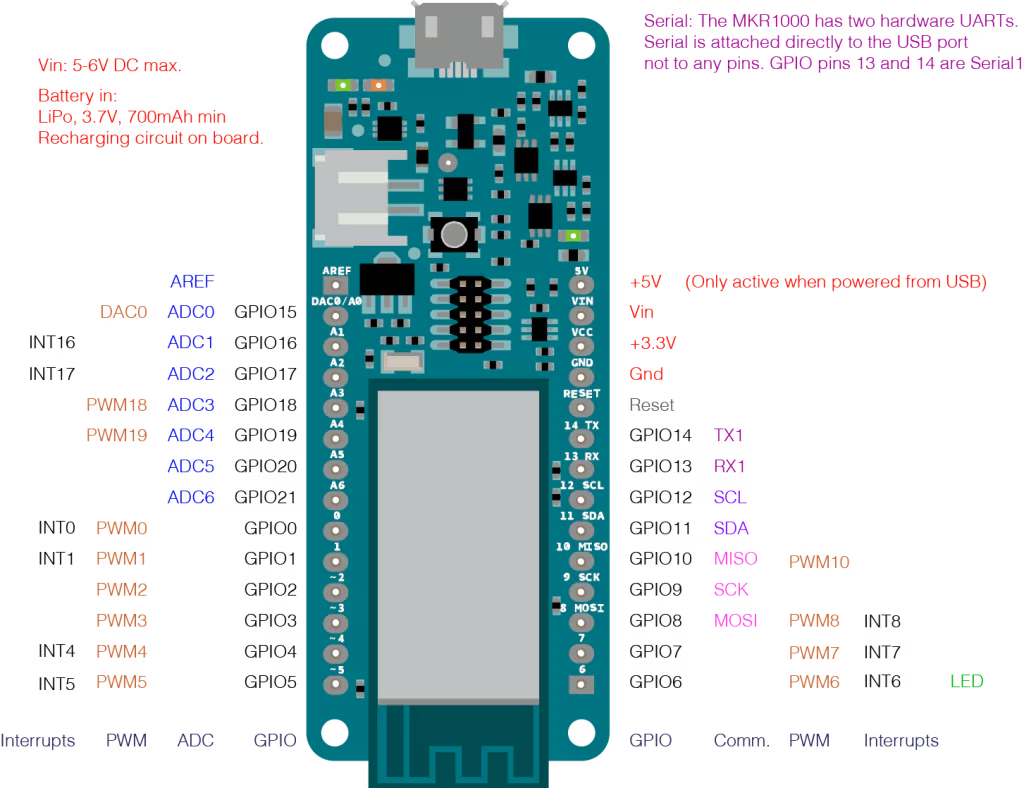
The Arduino MKR WiFi 1010 stands as a cornerstone in the realm of Internet of Things (IoT) development, offering a compact yet powerful platform for crafting connected devices. Its rich set of features, including integrated Wi-Fi and Bluetooth Low Energy (BLE) connectivity, makes it an ideal choice for prototyping and deploying a wide array of IoT applications. At the heart of its versatility lies its meticulously designed pinout, a landscape of connections that empower developers to interface with sensors, actuators, and other electronic components. Understanding each pin and its designated function is paramount to unlocking the full potential of this remarkable board.
This comprehensive guide will meticulously dissect the Arduino MKR WiFi 1010’s pinout, providing an in-depth explanation of every pin, its purpose, and best practices for its utilization. Whether you’re a seasoned IoT engineer or a budding enthusiast, this article will serve as your definitive reference to mastering the MKR WiFi 1010’s hardware capabilities.
Powering Your Projects: The Power Pins
The foundation of any electronic project is its power supply. The Arduino MKR WiFi 1010 offers a flexible power architecture, accommodating various power sources and providing regulated outputs for external components.
VIN: External Power Input
The VIN pin serves as the primary input for an external power supply. It’s designed to accept a voltage range between 5V and 6V. This is particularly useful when you need to power your Arduino MKR WiFi 1010 from a battery pack, a DC adapter, or another external power source that falls within this specified range.
Key Considerations for VIN:
- Voltage Regulation: The board incorporates internal voltage regulation to step down the
VINvoltage to the 3.3V logic level required by the microcontroller and other onboard components. - Current Capacity: Ensure your external power supply connected to
VINcan provide sufficient current for the MKR WiFi 1010 itself and all connected peripherals. Insufficient current can lead to erratic behavior or component damage. - Polarity: Always double-check the polarity when connecting an external power supply to
VINto prevent damage to the board. Most DC jacks are center-positive, but it’s always best to verify.
5V: Regulated Output from USB
The 5V pin provides a regulated 5V output, primarily sourced when the Arduino MKR WiFi 1010 is powered via its USB port. This pin is incredibly convenient for powering external 5V components, such as certain sensors or modules that operate at this voltage level.
Important Note: The 5V supplied by this pin is directly from the USB connection, which typically has a current limit. Avoid drawing too much current from this pin, especially for power-hungry components, as it could overload the USB port on your computer or power supply. For higher current demands, consider using a separate 5V regulator or power source.
3.3V: The Board’s Main Operating Voltage
The 3.3V pin is perhaps one of the most critical power pins, as it represents the main operating voltage of the Arduino MKR WiFi 1010. The microcontroller, the Wi-Fi/BLE module, and all other onboard components operate at a 3.3V logic level. This pin provides a regulated 3.3V output that can be used to power external components that are compatible with this lower voltage.
Critical Implication: Understanding that the board operates at 3.3V logic is paramount. This means that connecting 5V signals directly to any digital or analog input pins can permanently damage the board. Always ensure that any external components you connect are either 3.3V tolerant or that you use appropriate level shifters to convert 5V signals to 3.3V.
GND: The Ground Reference
The GND pins (there are usually several on the board) serve as the common ground reference for the entire circuit. All components connected to the Arduino MKR WiFi 1010, including sensors, actuators, and power supplies, must share a common ground to ensure proper operation. Without a common ground, voltage references can become inconsistent, leading to unreliable readings and potential circuit malfunctions.
VCC: Powering External Modules
The VCC pin explicitly provides a 3.3V output designed to power external modules such as sensors or other low-power peripherals. While similar to the 3.3V pin in its voltage output, VCC is often conveniently located near other communication pins like I2C or SPI, making it easier to wire up common modules. Always verify the current capabilities of this pin in the Arduino MKR WiFi 1010’s official documentation to avoid overdrawing current.
BATT: Li-Po Battery Connection
A standout feature of the MKR series, the BATT pin is specifically designed for direct connection of a single-cell Lithium Polymer (Li-Po) battery. This allows for portable and untethered operation, crucial for many IoT applications. The board includes a built-in battery charger, enabling you to recharge the connected Li-Po battery when the board is powered via USB or the VIN pin.
Battery Management Best Practices:
- Correct Battery Type: Only connect single-cell Li-Po batteries to the
BATTpin. Other battery chemistries or multi-cell batteries can cause damage or fire hazards. - Polarity: Observe strict polarity when connecting the battery. Reversing the polarity can permanently damage the charging circuit and the board.
- Protection Circuitry: Ideally, use Li-Po batteries that include internal protection circuitry against overcharge, over-discharge, and overcurrent.
- Monitoring: For critical applications, consider implementing battery voltage monitoring in your code to prevent deep discharge, which can shorten the battery’s lifespan.
Digital Interaction: Digital I/O Pins (D0 – D14)
The Arduino MKR WiFi 1010 features a set of digital input/output (I/O) pins, labeled D0 through D14. These pins are the workhorses for digital communication, allowing the board to interact with the outside world by reading digital signals (ON/OFF, HIGH/LOW) and controlling digital components.
Key Characteristics of Digital I/O Pins:
- 3.3V Logic: As with all I/O on the MKR WiFi 1010, these pins operate at a 3.3V logic level. Applying 5V directly to these pins will likely damage the microcontroller. Use logic level shifters if interfacing with 5V components.
- Input/Output Configuration: Each digital pin can be configured as either an input (to read signals from sensors, buttons, etc.) or an output (to control LEDs, relays, motors via drivers, etc.) using the
pinMode()function in your Arduino sketch. - Internal Pull-up Resistors: Many digital pins have internal pull-up resistors that can be enabled in software. These resistors are useful for inputs, ensuring a defined state when no external signal is applied (e.g., for reading a button press).
Common Applications for Digital I/O Pins:
- Reading Switches and Buttons: Detect user interaction or environmental conditions.
- Controlling LEDs and Light Indicators: Provide visual feedback or illumination.
- Interfacing with Relays and Solenoids: Control higher-power devices.
- Reading Digital Sensors: Acquire data from sensors that output digital signals (e.g., motion sensors, tilt switches).
Special Digital Pins: UART (Serial Communication)
Among the digital I/O pins, D0 and D1 hold special significance as they are dedicated to Universal Asynchronous Receiver-Transmitter (UART) communication, commonly known as serial communication.
- D0 (RX): UART Receive: This pin is used to receive serial data from another device.
- D1 (TX): UART Transmit: This pin is used to transmit serial data to another device.
These pins are crucial for debugging, communicating with other microcontrollers, GPS modules, Bluetooth modules (external to the NINA-W102), and other serial-enabled devices. While the Arduino IDE’s Serial Monitor uses the USB-to-serial converter, D0 and D1 provide hardware-level serial communication independent of the USB connection, allowing for more robust and often faster data exchange with external hardware.
Shaping Signals: PWM Pins (~ Symbol)
Pulse Width Modulation (PWM) is a powerful technique for generating analog-like behavior from a digital output. Pins marked with a tilde symbol (~) on the Arduino MKR WiFi 1010 are capable of generating PWM signals.
How PWM Works:
Instead of simply being ON or OFF, a PWM signal rapidly switches between HIGH (3.3V) and LOW (0V) at a high frequency. The “width” of the high pulse relative to the total period (the duty cycle) determines the effective analog value. A higher duty cycle means the pin is HIGH for a longer duration, resulting in a higher effective voltage, and vice versa.
Common Applications for PWM Pins:
- Motor Speed Control: By varying the duty cycle of a PWM signal, you can effectively control the average voltage supplied to a DC motor, thereby adjusting its speed.
- LED Brightness Control: Similarly, changing the duty cycle applied to an LED allows you to dim or brighten it more smoothly than simply turning it ON or OFF.
- Servo Control: Servomotors, commonly used in robotics and automation, require specific PWM signals to control their angular position. The MKR WiFi 1010’s PWM pins are perfectly suited for this task.
- Generating Analog Voltages (with Filtering): While less common for direct use as a true analog output, a PWM signal can be filtered with a simple RC circuit to produce a relatively stable analog voltage.
The analogWrite() function in the Arduino IDE is used to generate PWM signals on these designated pins, with a value typically ranging from 0 (0% duty cycle, always LOW) to 255 (100% duty cycle, always HIGH).
Reading the Real World: Analog Pins (A0 – A6)
The analog pins (A0 through A6) on the Arduino MKR WiFi 1010 are your gateway to interacting with the continuous, real-world signals produced by many sensors. Unlike digital signals, which are either HIGH or LOW, analog signals can vary continuously over a range of voltages.
Analog-to-Digital Converter (ADC)
The magic behind reading analog signals lies in the board’s built-in Analog-to-Digital Converter (ADC). The ADC’s role is to convert a continuous analog voltage into a discrete digital value that the microcontroller can understand and process.
Key Features of the MKR WiFi 1010’s ADC:
- 12-bit Resolution: The MKR WiFi 1010’s ADC boasts a 12-bit resolution. This means it can represent an analog input voltage as one of 212 (4096) distinct digital values, ranging from 0 to 4095. A higher resolution allows for more precise measurements of analog signals.
- 0-3.3V Input Range: The analog input pins are designed to read voltages within the range of 0V to 3.3V. Crucially, applying voltages outside this range, especially above 3.3V, can permanently damage the ADC and the microcontroller.
Common Applications for Analog Pins:
- Temperature Sensors: Read values from thermistors, IC temperature sensors (like LM35), or other analog temperature probes.
- Gas Sensors: Monitor the concentration of various gases (e.g., alcohol, CO, smoke) using analog gas sensors.
- Light Dependent Resistors (LDRs): Measure ambient light levels.
- Potentiometers: Read the position of a variable resistor for user input or calibration.
- Flex Sensors, Force Sensors, Pressure Sensors: Convert physical changes into measurable analog voltage variations.
The analogRead() function is used to read the digital value from an analog pin. This value can then be mapped or converted to a meaningful physical quantity (e.g., Celsius for temperature, Lux for light) using mathematical formulas.
Efficient Communication: I2C Pins
I2C (Inter-Integrated Circuit) is a widely used serial communication protocol that allows multiple “slave” devices to communicate with a single “master” device over just two wires. The Arduino MKR WiFi 1010 provides dedicated pins for I2C communication, making it easy to integrate a plethora of I2C-enabled sensors and modules.
The Two I2C Wires:
- SDA (Serial Data Line): This line carries the actual data being transmitted between the master and slave devices.
- SCL (Serial Clock Line): This line provides the clock signal that synchronizes data transfer, ensuring both devices are “speaking” at the same pace.
Both SDA and SCL lines require pull-up resistors to operate correctly. These are often included on breakout boards for I2C modules, but sometimes you may need to add them externally (typically 4.7kΩ resistors to 3.3V).
Advantages of I2C:
- Two-Wire Simplicity: Only two wires are needed for data transfer, reducing wiring complexity.
- Multi-Master/Multi-Slave: Allows multiple master devices and many slave devices on the same bus, each with a unique address.
- Addressability: Each I2C device has a unique 7-bit (or 10-bit) address, allowing the master to selectively communicate with specific slaves.
Common I2C Devices:
- LCDs (Liquid Crystal Displays): Drive character or graphical displays with minimal pins.
- RTC Modules (Real-Time Clocks): Keep track of time and date with battery backup.
- Sensors: A vast array of sensors utilize I2C for communication, including:
- MPU6050: Gyroscope and accelerometer for motion sensing.
- BMP280/BME280: Barometric pressure, temperature, and humidity sensors.
- Various environmental sensors: Gas, light, and more.
- EEPROMs: External memory chips.
The Arduino Wire library (#include <Wire.h>) provides the necessary functions to implement I2C communication in your sketches.
High-Speed Data Exchange: SPI Pins
SPI (Serial Peripheral Interface) is another synchronous serial communication protocol, known for its high speed and full-duplex capabilities (meaning data can be sent and received simultaneously). The Arduino MKR WiFi 1010 offers dedicated pins for SPI communication, making it suitable for applications requiring faster data transfer rates than I2C.
The Four SPI Wires:
SPI typically uses four primary wires:
- MOSI (Master Out Slave In): Data transmitted from the master to the slave.
- MISO (Master In Slave Out): Data transmitted from the slave to the master.
- SCK (Serial Clock): The clock signal generated by the master to synchronize data transfer.
- SS (Slave Select): Also known as Chip Select (CS), this pin is used by the master to individually select which slave device it wants to communicate with. Each slave device on the SPI bus typically has its own
SSpin.
Advantages of SPI:
- High Speed: Generally faster than I2C, especially for streaming data.
- Full Duplex: Master and slave can transmit and receive data concurrently.
- Simplicity: No complex addressing scheme like I2C.
- Flexibility: Easily supports multiple slave devices.
Common SPI Devices:
- SD Cards: Store large amounts of data for logging, multimedia, or configuration files.
- Displays: Drive graphic LCDs, OLEDs, and other display technologies.
- High-Speed Sensors: Accelerometers, gyroscopes, and other sensors that produce large volumes of data.
- Flash Memory (External): Expand the non-volatile storage capability of your project.
- Ethernet Shields/Modules: For wired network connectivity.
The Arduino SPI library (#include <SPI.h>) facilitates SPI communication in your sketches, allowing you to set up the master, configure clock speed, data order, and communication mode.
Restarting Operations: Reset Pin
The Reset pin (often labeled RST or connected to a push-button) provides a hardware mechanism to restart the microcontroller. When pulled LOW (typically by pressing a button), the microcontroller will execute a hard reset, effectively restarting your program from the beginning.
Uses of the Reset Pin:
- Debugging: Essential during the development phase when your code might enter an unexpected state, and you need to quickly restart the program without disconnecting power.
- Program Upload: On some Arduino boards (though less critical for modern USB-based uploads), the reset pin is used by the IDE to momentarily reset the board before uploading new code.
- Recovery: If your board becomes unresponsive due to a software crash, a hard reset can often bring it back to a working state.
Refining Analog Reference: AREF Pin
The AREF (Analog Reference) pin allows you to set a custom reference voltage for the Analog-to-Digital Converter (ADC). By default, the ADC on the Arduino MKR WiFi 1010 uses the board’s 3.3V supply as its reference. This means that an analog input of 3.3V will be read as 4095 (the maximum 12-bit value), and 0V will be read as 0.
When to Use AREF:
- Increased Accuracy for Smaller Ranges: If you are measuring analog signals that only span a small voltage range (e.g., 0V to 1V), using the default 3.3V reference might result in lower resolution. By connecting a stable 1V source to
AREFand configuring the ADC accordingly, you can utilize the full 12-bit resolution across that smaller 0-1V range, leading to more precise measurements. - External Voltage References: For applications requiring extremely high accuracy or stability, you might use an external precision voltage reference IC connected to
AREF.
Important Precaution:
- Do not connect a supply voltage higher than 3.3V to the
AREFpin. Doing so can damage the internal ADC. - When using
AREF, you must explicitly tell the ADC to use this external reference in your code usinganalogReference(EXTERNAL);before callinganalogRead(). Avoid doing this directly without understanding the implications, as incorrect usage can lead to incorrect readings or damage.
The Digital Lifeline: USB Port
The USB port on the Arduino MKR WiFi 1010 serves multiple critical functions, making it a central point of interaction with the board.
Programming the Board
The primary function of the USB port is to upload your Arduino sketches (programs) from your computer to the board’s microcontroller. The integrated USB-to-serial converter handles the communication between your PC and the microcontroller, making the upload process seamless.
Power Supply
When connected to a computer or a USB wall adapter, the USB port provides the primary power supply for the Arduino MKR WiFi 1010. This is often the most convenient way to power the board during development and testing. As mentioned earlier, this connection also provides the 5V to the 5V pin and charges the Li-Po battery if connected.
Serial Communication with PC
Beyond programming, the USB port establishes a serial communication link with your computer. This allows you to:
- Debug Your Code: Print debug messages from your sketch to the Serial Monitor in the Arduino IDE, helping you understand program flow and variable values.
- Receive Data: Send data from your Arduino to your computer for logging, display, or further processing by other software.
- Send Commands: Send commands or configuration data from your computer to your Arduino sketch.
This robust serial communication capability via USB is indispensable for development, troubleshooting, and interactive applications.
Beyond the Basics: Special Feature Pins
The Arduino MKR WiFi 1010 isn’t just about general-purpose I/O; it integrates powerful special features that set it apart for IoT applications. While not exposed as individual pins in the traditional sense, understanding their internal connections is crucial.
Connected Internally to WiFi + BLE Module (NINA-W102)
At the heart of the MKR WiFi 1010’s connectivity capabilities is the u-blox NINA-W102 module. This module provides both Wi-Fi (IEEE 802.11 b/g/n) and Bluetooth Low Energy (BLE 4.2) connectivity. The microcontroller communicates with this NINA module internally via a dedicated serial (UART) interface and other control lines.
Implications for Your Projects:
- Seamless Connectivity: You don’t need to add external Wi-Fi or Bluetooth modules, simplifying your hardware design and reducing overall cost and size.
- Robust Libraries: Arduino provides comprehensive libraries (like
WiFiNINAandArduinoBLE) that abstract away the complexity of communicating with the NINA-W102, allowing you to easily connect to networks, interact with web servers, and build BLE devices. - Power Management: The NINA module’s power consumption is a key consideration for battery-powered applications. Efficient use of its sleep modes (managed by the libraries or your code) is vital for maximizing battery life.
Crypto Chip (ECC508) for Secure Communication
Security is paramount in IoT, and the Arduino MKR WiFi 1010 addresses this with an integrated Microchip ATECCx08A (specifically ECC508) crypto-authentication chip. This hardware security element provides robust cryptographic capabilities.
Benefits of the ECC508 Crypto Chip:
- Secure Key Storage: Stores cryptographic keys (private keys, certificates) in a tamper-resistant environment, making them extremely difficult to extract.
- Hardware-Accelerated Cryptography: Offloads complex cryptographic operations (like elliptic curve cryptography) from the main microcontroller, improving performance and security.
- Authentication and Device Identity: Enables secure device authentication to cloud platforms, ensuring that only trusted devices can connect and send data. This is crucial for preventing spoofing and unauthorized access.
- Secure Boot: Can be used to verify the integrity of the firmware during startup, preventing malicious code from running.
- TLS/SSL Connectivity: Facilitates secure communication over the internet (HTTPS, MQTT over TLS) by handling the cryptographic handshake and data encryption/decryption.
While you don’t directly “use” pins for the ECC508, its presence is a significant advantage for developing secure IoT applications, especially when connecting to cloud services or sensitive infrastructure. Arduino provides libraries (e.g., ArduinoECCX08) to interact with this chip, making it accessible to developers.
Critical Considerations: The 3.3V Logic Level
Throughout this explanation, the 3.3V logic level of the Arduino MKR WiFi 1010 has been emphasized repeatedly, and for good reason. It is the single most important hardware characteristic to remember when working with this board.
Entire Board Works at 3.3V Logic Level
Every digital signal, every analog reading, and the internal operations of the microcontroller and NINA module occur at 3.3V. This means:
- Digital Input Thresholds: A HIGH signal is typically around 3.3V, and a LOW is 0V.
- Analog Input Range: 0V to 3.3V.
Supplying 5V Directly to I/O Pins Can Damage the Board
This point cannot be overstated. If you connect a component that outputs a 5V digital signal (like an older sensor, a 5V Arduino, or many common 5V logic ICs) directly to any of the MKR WiFi 1010’s digital or analog input pins, the excess voltage will likely damage the input circuitry of the microcontroller. This damage is often permanent and can render the board inoperable.
Solutions for 5V Interfacing:
- Logic Level Shifters: These small, inexpensive modules are designed to safely convert signals between different voltage levels (e.g., 5V to 3.3V and vice versa). They are a must-have tool in your IoT toolkit when working with mixed-voltage systems.
- Voltage Dividers: For reading a 5V analog signal, you can use a voltage divider (a pair of resistors) to step down the 5V to a voltage within the 0-3.3V range before it reaches the analog input pin.
- 3.3V Compatible Components: Where possible, choose sensors and modules that are explicitly designed to operate at 3.3V logic levels. Many modern components offer this compatibility.
Always check the datasheet or specifications of any external component before connecting it to your Arduino MKR WiFi 1010 to ensure voltage compatibility.
Conclusion: Mastering the MKR WiFi 1010 for IoT Innovation
The Arduino MKR WiFi 1010 is a meticulously engineered platform, offering a rich ecosystem of pins and internal features tailored for the demands of modern IoT development. From its flexible power options and versatile digital and analog I/O to its specialized communication protocols (I2C, SPI, UART) and built-in Wi-Fi, BLE, and hardware security (ECC508), the board provides a solid foundation for a countless array of connected projects.
A thorough understanding of each pin’s function, especially the critical 3.3V logic level, is not just beneficial—it’s essential for successful and robust IoT system design. By carefully considering power requirements, signal compatibility, and leveraging the diverse communication interfaces, you can unleash the full potential of the Arduino MKR WiFi 1010 to create innovative and impactful solutions.
Whether you are building smart home devices, environmental monitoring systems, industrial sensors, or remote control applications, the MKR WiFi 1010 provides the tools you need to bring your ideas to life. Embrace its capabilities, respect its electrical characteristics, and let your creativity flourish in the connected world.
Empower Your IoT Vision with IoT Worlds
Are you ready to transform your ideas into reality but need expert guidance in navigating the complexities of IoT development? At IoT Worlds, we specialize in providing comprehensive services, from conceptualization and prototyping to deployment and optimization, leveraging powerful platforms like the Arduino MKR WiFi 1010. Our team of experienced engineers and strategists is dedicated to helping you build secure, scalable, and efficient IoT solutions tailored to your unique needs.
Unlock the full potential of the Internet of Things for your business or personal project. Contact us today at info@iotworlds.com to discuss how we can help you innovate and succeed in the connected future.
